
Documentation
Quick start
On this page
Choose the Browser Lab for a first image experiment. Use the Windows path only with a supplied, reviewed package and a controlled workstation.
Browser Lab: first image workflow
- Open the Browser Vision Lab from the DeYiVision website. The hosted Lab has a contact entry form; review the displayed consent and complete it yourself. The entry form sends contact details to the hosted service. This is separate from image processing.
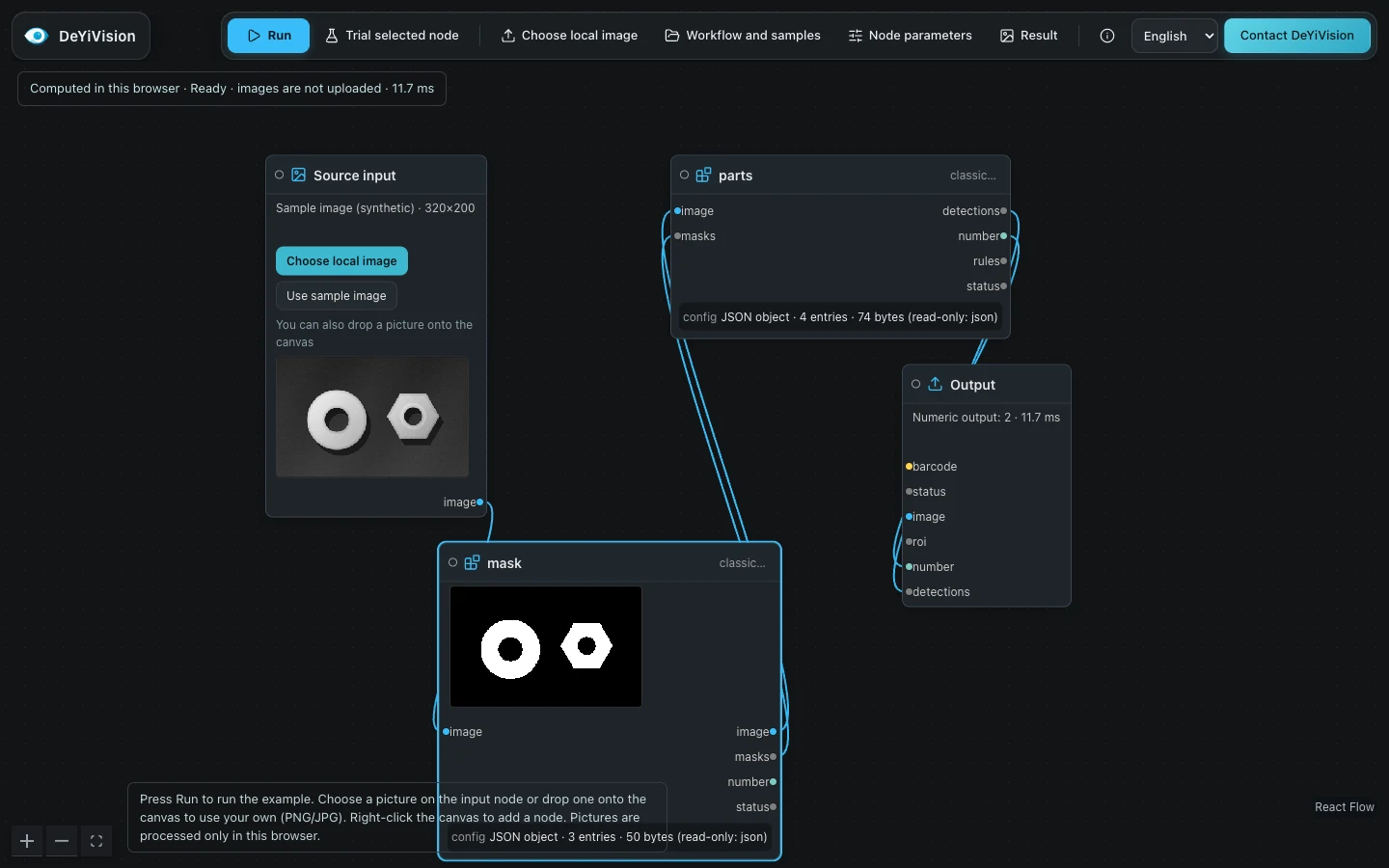
- Wait for the engine to initialize. On first load, the Lab runs a synthetic example once. Later workflow runs are initiated by you. Check the input node says it is a synthetic example.
- Select Choose local image (or choose a file on the input node), or drag a picture onto the canvas. The public Lab supports browser-decodable pictures such as PNG, JPEG and WebP. See input limits.
- Select a node and open Node parameters. Apply or discard pending parameter edits before running.
- Select Run for the whole workflow. Trial selected node evaluates a local node scope; it is not proof that the whole graph succeeds.
- Open Results and inspect the input, output, dimensions, processing status and elapsed time. If the graph changed after a run, the old result belongs to the previous parameters.
- Open Workflows and samples and export a workflow or development report if you need to keep it. A tab's draft or session history is not a durable project backup.
The English wording can vary slightly with the build. The toolbar groups image selection, workflow/sample library, node parameters and results around the canvas.
Local interface example
Windows: first launch
- Obtain the approved installer and its release information from DeYiVision. Confirm which camera model, firmware and SDK combination was tested for that package.
- Follow installation. Keep internet access disabled during initial setup. Preserve existing configuration and data before an upgrade.
- Start DeYiVision under the intended Windows user. Open the workbench and check its connection state. An unconnected or demo interface may display synthetic data.
- Start with an offline image workflow and compare the reported workspace, version and input identity. Do not infer device access from a successful PC run.
- Arrange a supervised camera commissioning window, then follow camera connection. Confirm the current job and the effect of any action before using it.
What counts as success
For a Lab trial, success means the intended graph completed on the selected image and you can explain the output. For a Windows offline run, it also means the task, workflow revision and result belong to the same instance.
Neither success establishes a production inspection threshold, a camera's final OK/NG field, line cycle time or equipment safety. Those require agreed samples and site acceptance.